
his guide uses the XPR/XMD pair and the demo account @xprbasics. Checked on November 18, 2026. Metal X can change its screens, so the names of buttons may differ slightly.
What you need
- A WebAuth wallet with some XPR (see episodes 1.2 to 1.4).
- A verified account. The Knowledge Center lists verification as a requirement for trading on Metal X (episode 1.5).
- A computer with a browser, and WebAuth on your phone to sign.
1. Open the DEX
- On your computer, open app.metalx.com. Type it in yourself or use a bookmark.
- The Trade page is the DEX. Pick the pair at the top left, here XPR / XMD.
- Click Connect Wallet and connect WebAuth with the QR code, like in episode 1.7. Your account name shows at the top right.
2. Read the order book
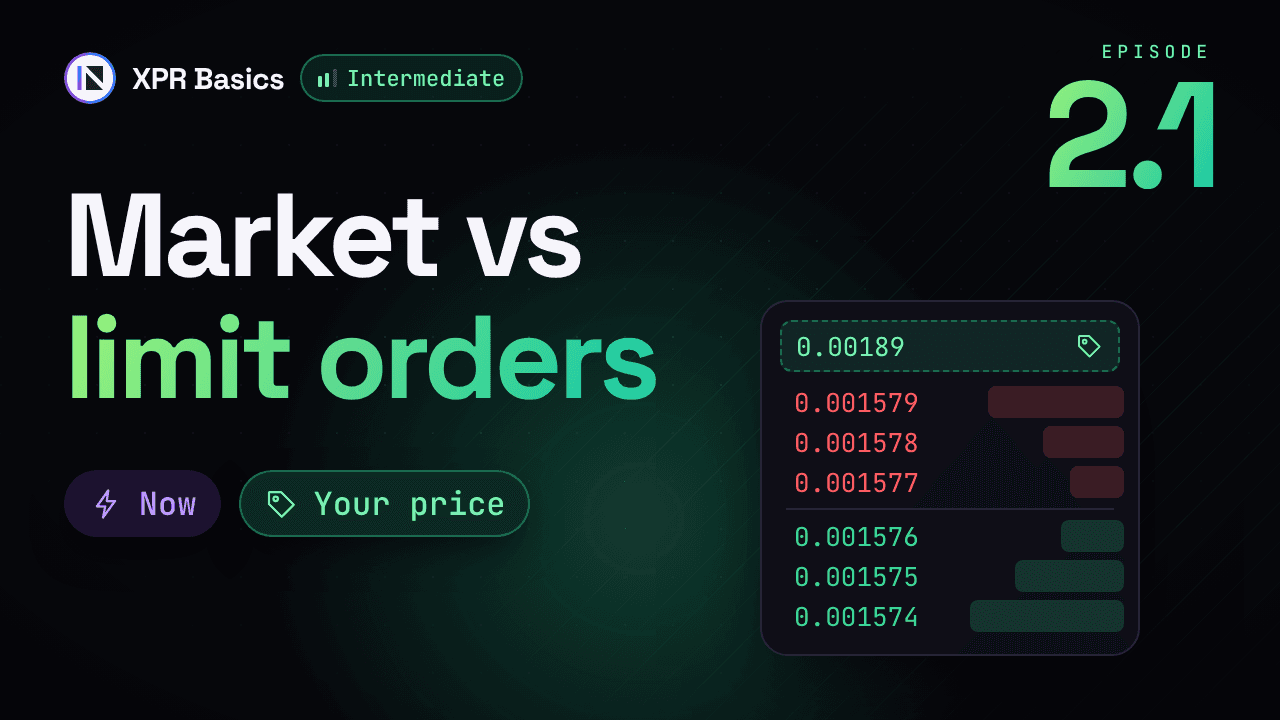
- Sell orders are at the top, in red.
- Buy orders are at the bottom, in green.
- The lowest sell and the highest buy are the best prices right now. In the video they were 0.001577 and 0.001576 XMD per XPR.
- The gap between them is the spread.
3. Place a market order
A market order trades right away, at the best prices in the book.
- In the order form, click Market. The tabs Stop Loss and Take Profit are other order types, not covered here.
- On the sell side (right), there is no price to set. The price field says MARKET. Enter only the amount of XPR.
- Orders have a minimum, about 1 XMD. In the video, 500 XPR was too little, and the button showed "Minimum: 634.5178 XPR". We clicked 75% of the balance, which gave 750 XPR.
- Click Sell XPR.
- Metal X shows a QR code. Scan it with WebAuth and check the request. In the video it had these lines:
- Send to @dex: 750 XPR
- Market Order: Sell 750 XPR for XMD
- Process … orders (the DEX matches the queued orders)
- Withdraw all funds from DEX for xprbasics (the result goes back to your wallet)
- If it matches, tap Authorize. Metal X shows "Order successful!".
Order History showed the sale as 100% filled: 750 / 750 XPR for 1.18125 XMD. After the 0.1% fee, 1.180069 XMD arrived in Funds.
Big orders: a market order takes whatever the book offers. A big order in a thin book eats through several price levels, and each level has a worse price. Check the book before a large market order.
4. Place a limit order
A limit order waits for your price.
- Click Limit.
- In Price, set the price you want. To sell, set it above the current price. In the video the current price was 0.001575, and we set 0.00189 XMD, about 20% higher.
- In Amount, enter the XPR to sell, here 750. Total shows what you would get at that price: 1.4175 XMD.
- Click Sell XPR, scan the QR code, and check the request: Send to @dex 750 XPR, and Limit Order: Sell 750 XPR for 1.4175 XMD at price 0.00189. Tap Authorize.
5. The order waits
- The order shows under Open Orders, with 0 / 750 XPR filled.
- A line on the chart marks your price: Limit 0.00189 · 750.
- It fills only if someone buys at your price. It can fill in part, or not at all.
- Until then, the DEX contract holds your XPR. In the video, Funds showed 0.1112 XPR left after the order.
6. Cancel an order
- In** Open Orders**, click Cancel next to the order.
- Scan the QR code. The request has two lines: Cancel order #… and Withdraw all funds from DEX.
- Tap Authorize. Metal X shows "Order cancelled!", and the XPR is back in Funds (750.1112 XPR in the video).
Fees
Filled orders pay a small trading fee. An order that waits in the book is a maker, and one that fills right away is a taker. The Fees tab shows your rates. On the demo account both were 0.1% (tier I). Rates go down with more trading volume or more staked XPR. Placing and cancelling orders costs no gas.
Trade only on app.metalx.com, typed in yourself or saved as a bookmark. Read every request in WebAuth before you tap Authorize.
Prices can move fast. Trade only what you can afford to lose. Nothing here is financial advice.